
Complete your Right to Work Check with Credas
To keep things fast, secure and fully compliant with Home Office standards, Cinch uses Credas, a government certified biometric identity verification platform.
You’ll receive a separate secure link by email or text. This link is unique to you — please complete the check as soon as it arrives.
What You’ll Need
How it Works
1. Open your Credas Link
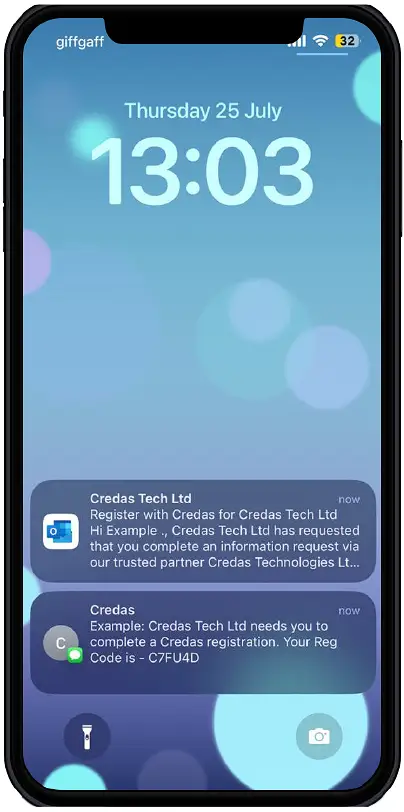
You will receive an email/SMS providing you with a link to download the Credas app or view Credas in your browser. You will also be provided with an Unique Registration Code. You will need this to login.
2. Choose the App or Browser
You can complete the check using the Credas app or directly in your browser. If you select web browser, please ensure you have access to a camera.
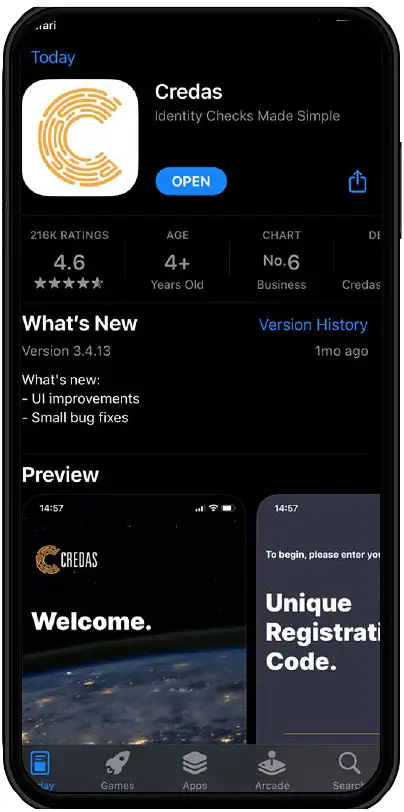
3. Welcome to Credas
Click the ‘Let’s Go’ button.
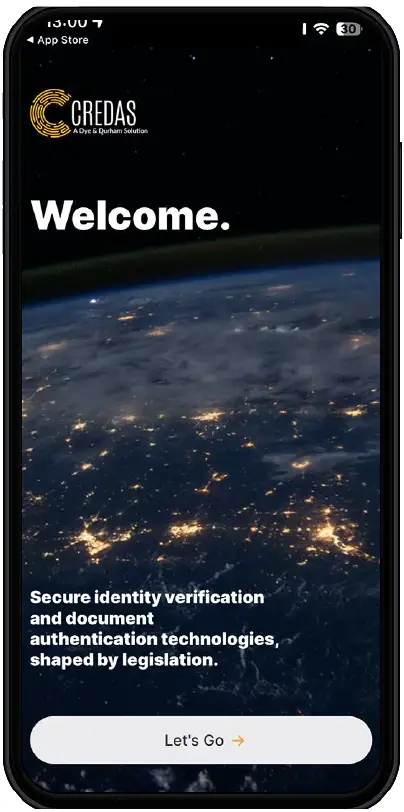
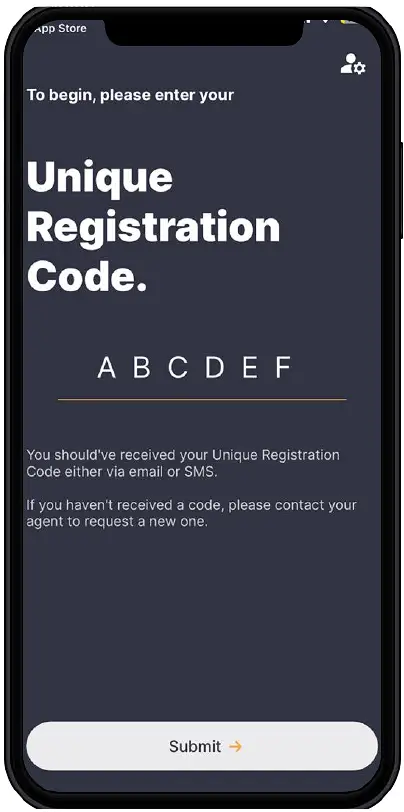
4. Enter your Unique code
Enter your unique registration code you were given in the email/SMS.
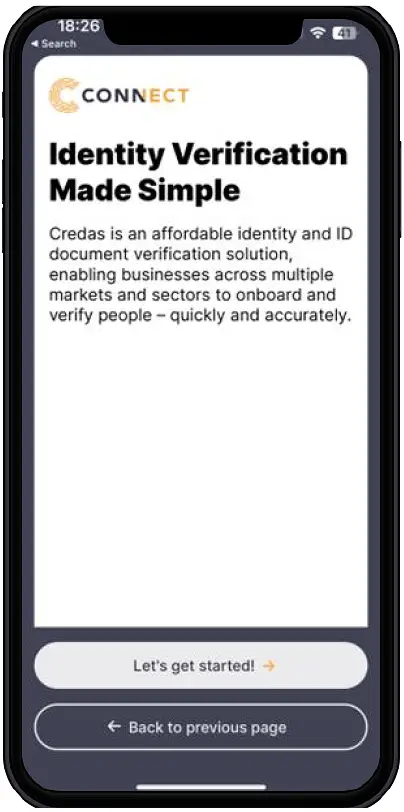
5. Enter your Details
Credas will ask for basic information to create your secure profile. Click ‘Let’s get started!’
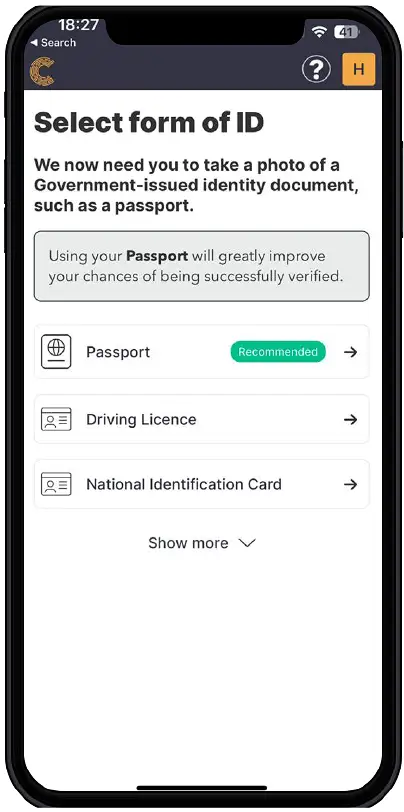
6. ID Selection
Please choose which ID you would like to submit.
7. Photograph your ID
Please review the instructions given on how to take the best photograph of your document and use the outlines for guidance.
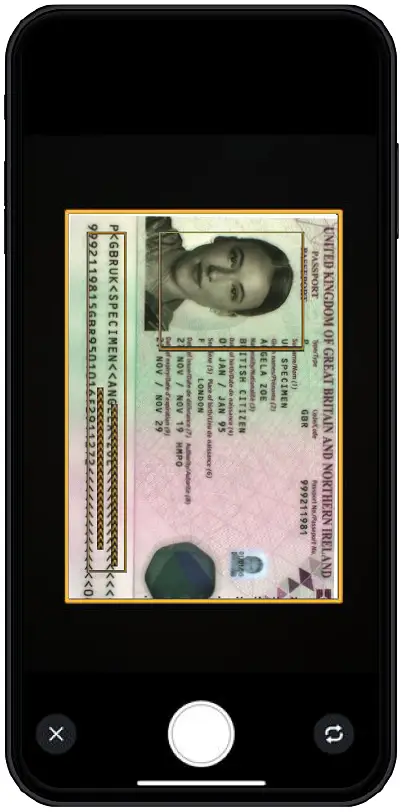
8. Using a Passport
If you are using a passport you will be asked to scan your NFC chip in your passport using contactless technology.
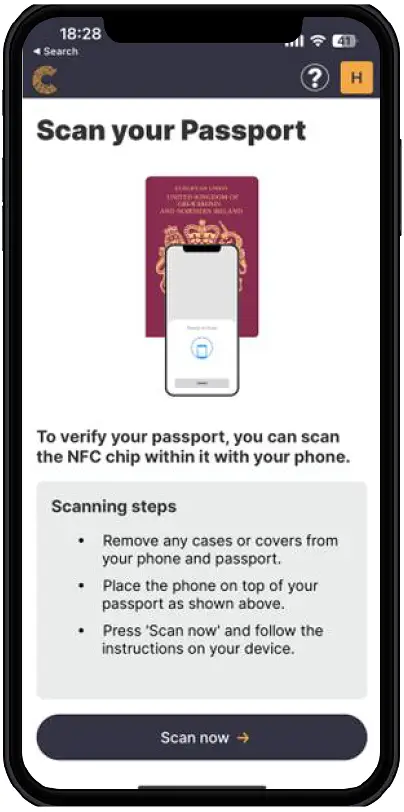
Non UK/Irish Passport Holders >
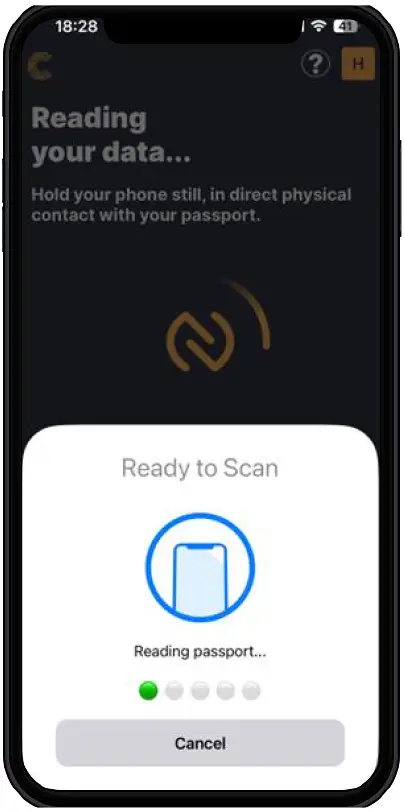
9. Scanning Passport
Hold your phone in physical contact with your passport, with your phone on top of the passport just as you would when completing a contactless payment.
10. Take a live Selfie
You will now be asked to take a selfie to confirm you are live and present.
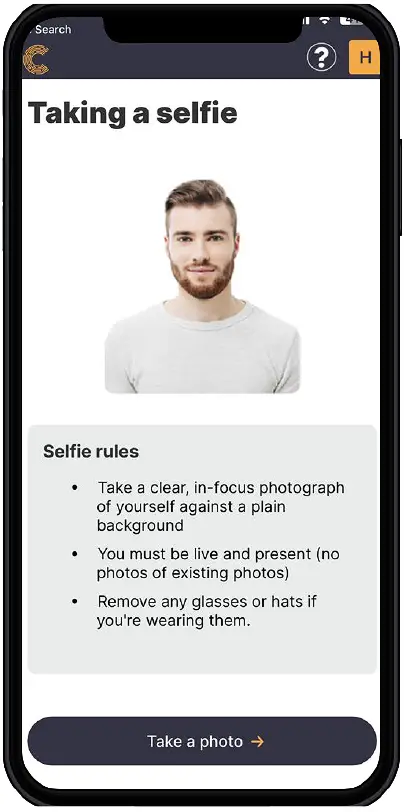
Tips for a smooth check >
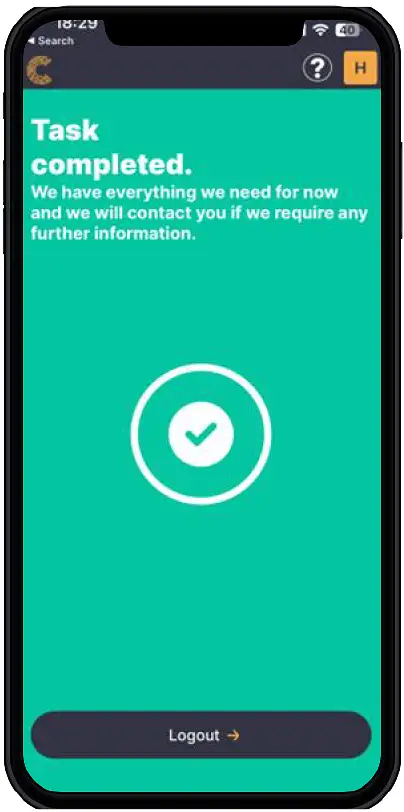
11. Submit and you’re done
You are now finished with your check and you can close the app. Credas sends Cinch a secure verification report automatically.
Need Help?
Our team is here to support you — just reach out to Cinch Support.
Telephone: 0114 478 9351
Email: hello@thecinchgroup.com